> ## Documentation Index
> Fetch the complete documentation index at: https://mezmo-9a59581a-aura-overview-edts.mintlify.site/llms.txt
> Use this file to discover all available pages before exploring further.
# PagerDuty Alert Integration
> Connect Mezmo alerts to PagerDuty so log-based alerts trigger incidents, including how to test, delete, and the 400 KB payload limit.
## About PagerDuty Alert Integration
Mezmo’s alert integration with PagerDuty interfaces with [PagerDuty Event API](https://developer.pagerduty.com/docs/events-api-v2/overview/) and allows alerts sent from Mezmo to trigger events in PagerDuty.
## Integrating with PagerDuty
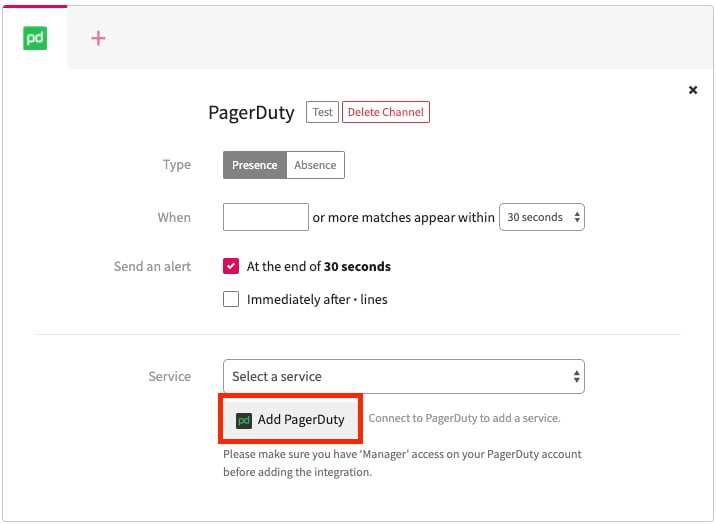
On the alerts creation page, select the PagerDuty logo.
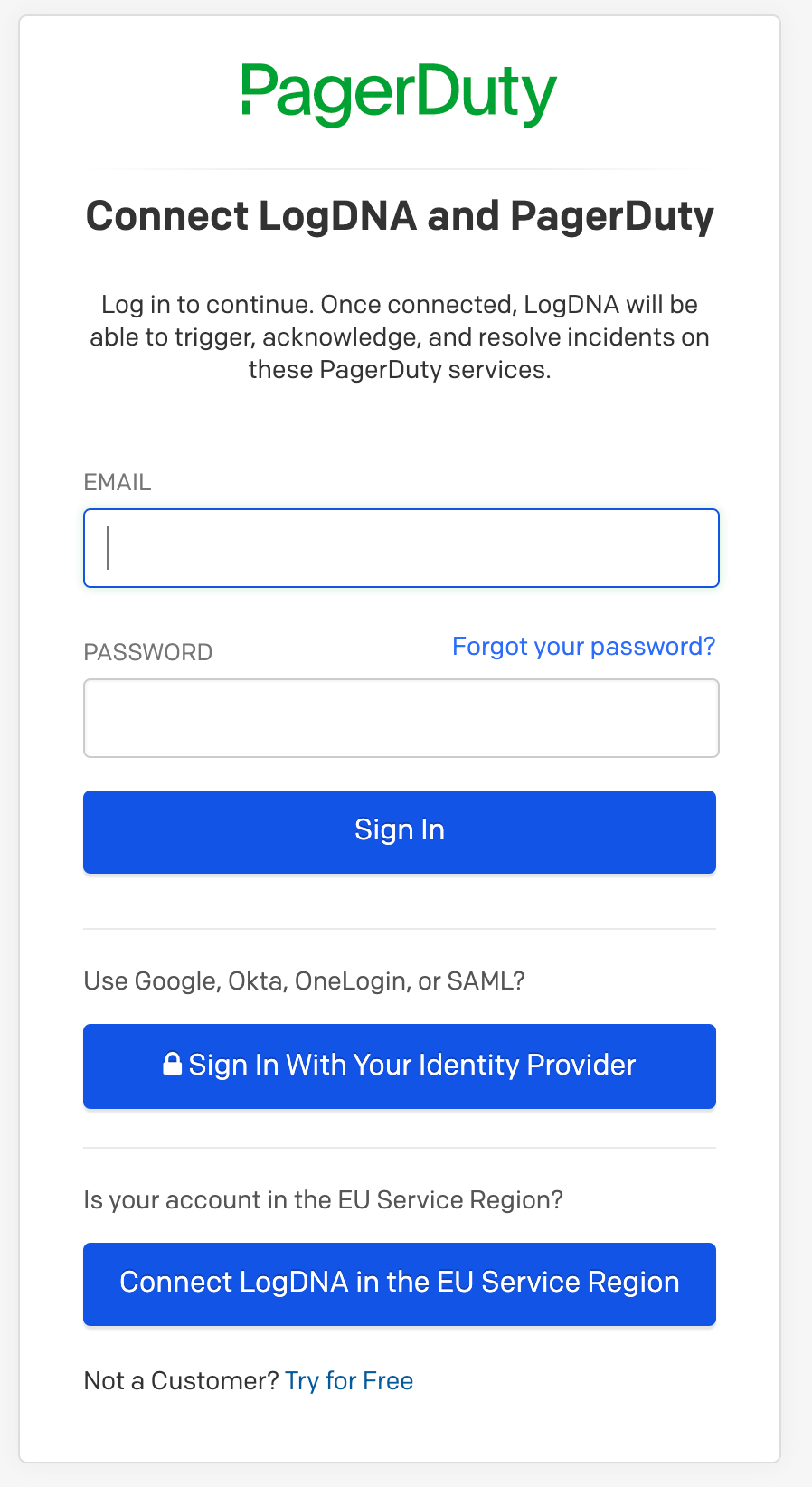
 You will be directed to PagerDuty to authorize the integration, using your email address and password for your PagerDuty account.
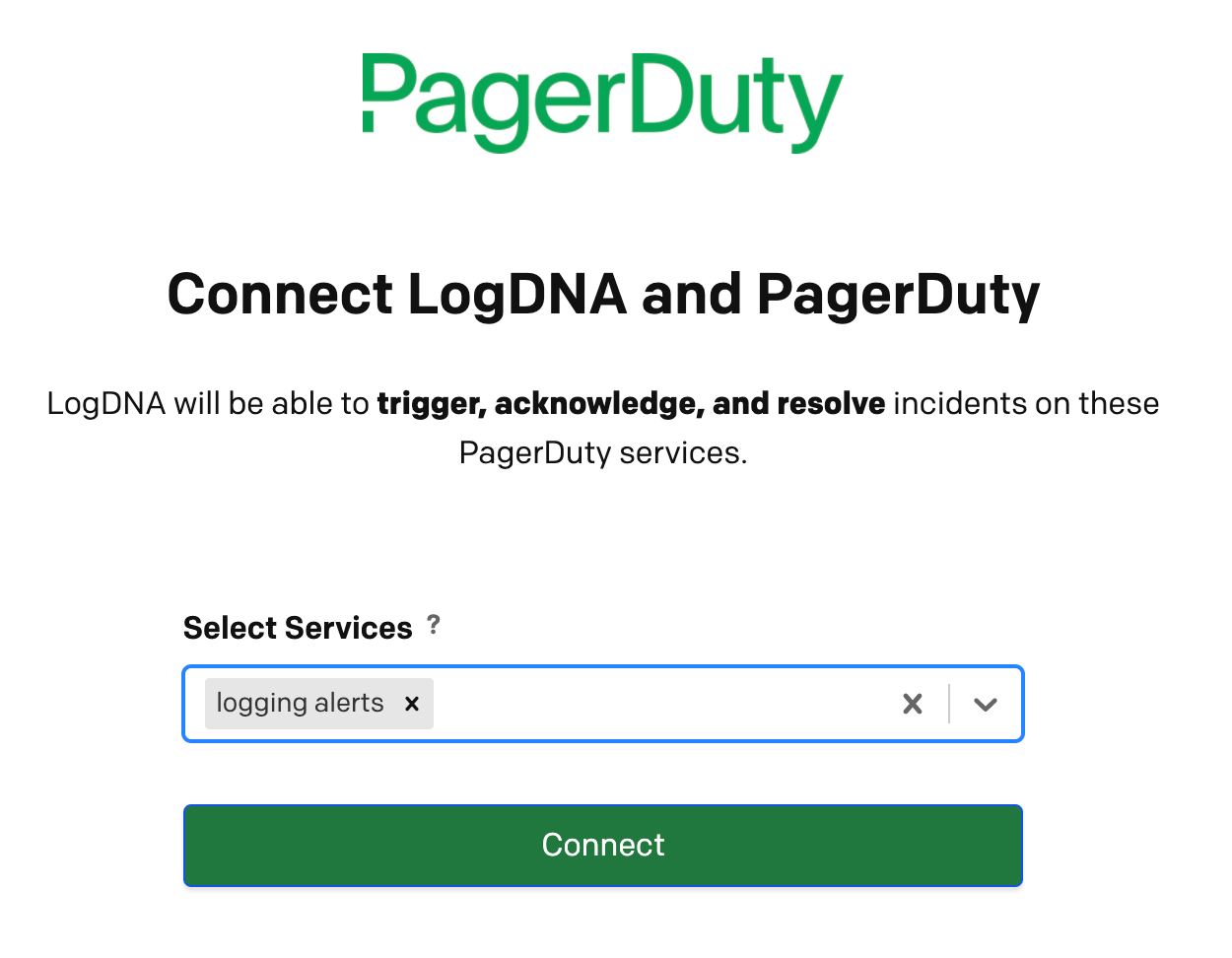
 After authorization, you are prompted to select the PagerDuty service **logging alerts** and then click **Connect**.
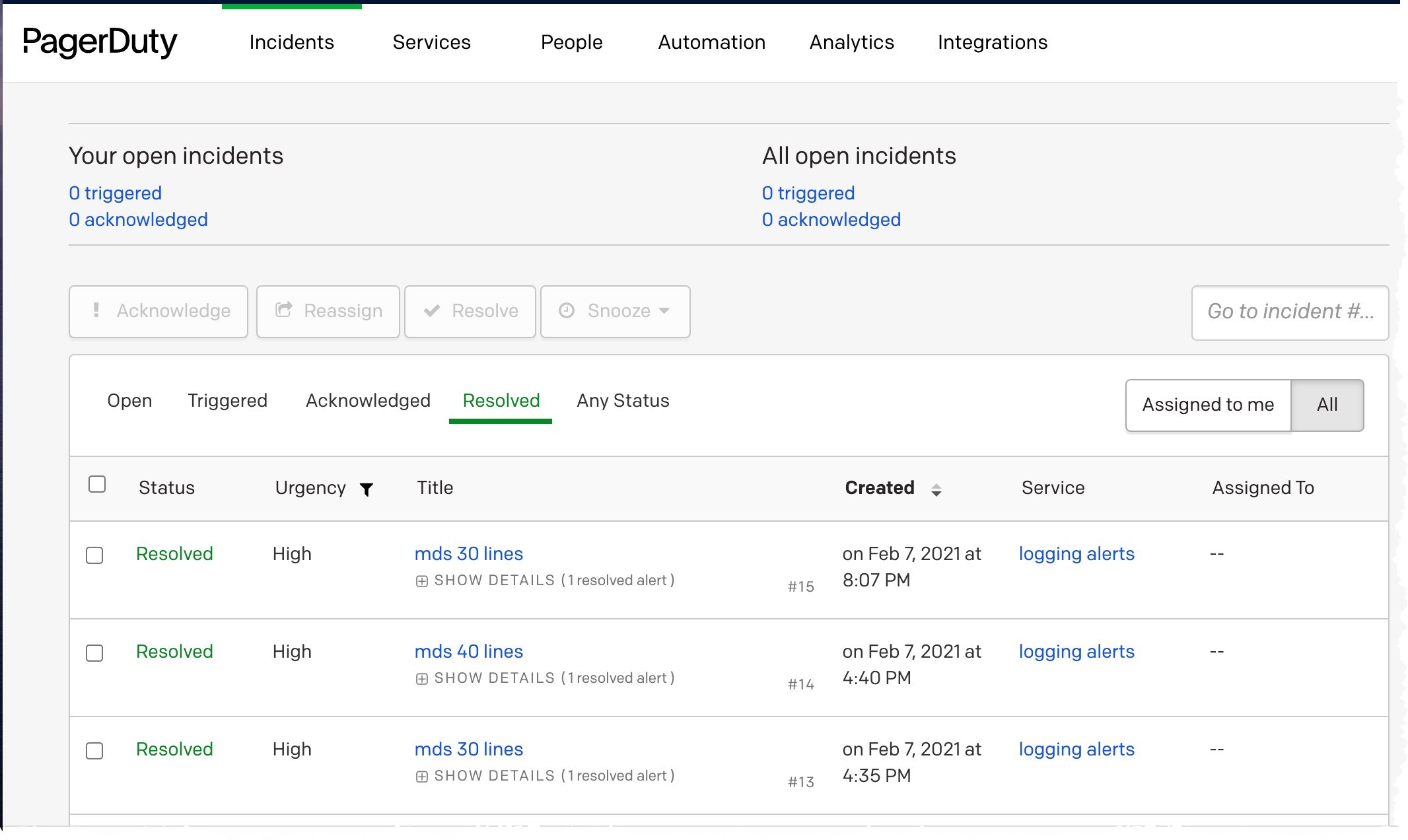
 After completing the connection, remember to save your Mezmo alert so that your alerts will trigger in PagerDuty and new alerts display in your PagerDuty incidents dashboard.
 ## Testing Your PagerDuty Integration
You can choose trigger a test alert with test data, even before saving your PagerDuty alert. As long as you have selected a connected source from PagerDuty, you will be able to create a test alert.
## Deleting Your PagerDuty Integration
1. Log in to the Mezmo Web App.
2. Go to **Settings > Integrations**.
3. Select your PagerDuty integration to open its **Settings** page.
4. Click the **X** next to the Service you want to delete.
5. Click \*\_Yes, delete \*\_in the confirmation dialog to remove the service.
## Limitations on PagerDuty data payload
Because of [PagerDuty integration limitations](https://developer.pagerduty.com/docs/events-api-v2/overview/), we trim all requests to be at most 400 kilobytes.
## Testing Your PagerDuty Integration
You can choose trigger a test alert with test data, even before saving your PagerDuty alert. As long as you have selected a connected source from PagerDuty, you will be able to create a test alert.
## Deleting Your PagerDuty Integration
1. Log in to the Mezmo Web App.
2. Go to **Settings > Integrations**.
3. Select your PagerDuty integration to open its **Settings** page.
4. Click the **X** next to the Service you want to delete.
5. Click \*\_Yes, delete \*\_in the confirmation dialog to remove the service.
## Limitations on PagerDuty data payload
Because of [PagerDuty integration limitations](https://developer.pagerduty.com/docs/events-api-v2/overview/), we trim all requests to be at most 400 kilobytes.